








gori has hundreds of actions, and you do not need to learn their keys up front. Two keys reach all of them:
| Press | You get | Reach for it when |
|---|---|---|
Space |
The space menu: what you do most in the pane you are in, one letter per action | You know roughly what you want to do here |
Ctrl-P |
The command palette: every action, found by typing its name | You don't know where something lives, or you rarely need it |
Both show each action's own key beside it, so every visit teaches you the shortcut, and you need them less the more you use them. ? opens the Help tab, the full key sheet.
Learn it hands-on.
gori tutorial(orCtrl-P→ Guided tour from inside a session) has a lesson on each, on a mock UI where nothing you press is real.
The space menu
Press Space in any list or pane. A card opens with the actions for where you are standing: a History row, a flow's detail, the Repeater editor, a rule list. The same key on a different pane gives a different card.
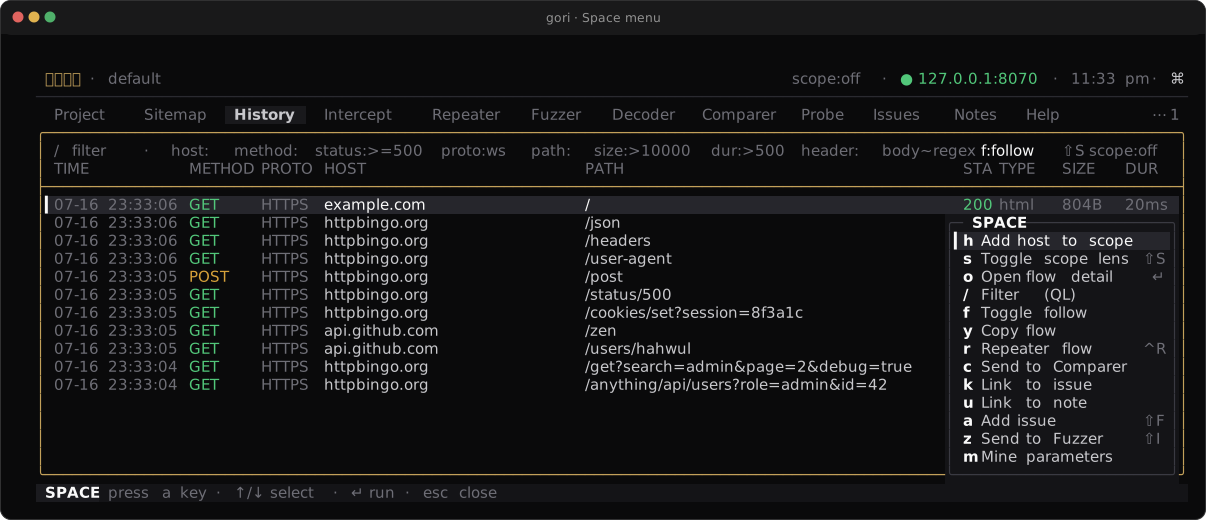
› opens a second card.How to read the card:
- The letter on the left runs the row. Press
yand the flow is copied; the menu closes. - The key on the right is the row's shortcut.
r Repeater flow ^RmeansCtrl-Rsends to the Repeater from the list, with no menu at all. A row without one is reached through the menu (or the palette). - A
›row opens a second card instead of running. See Second cards. - Rows are grouped by purpose: VIEW, SEND, TRIAGE, COPY, and so on. Delete sits under DANGER and a whole-tab wipe under WIPE, always last, and a wipe asks before it acts.
Moving inside the menu
| Key | Does |
|---|---|
| a row's letter | run that row |
↑ / ↓ or j / k |
move the selection |
← / → or h / l |
change column |
↵ |
run the selected row |
Esc |
close the menu, or go back one level from a second card |
h, j, k and l are never a row's letter, so they always move and a reflex j never runs anything. Any key the card does not list closes it.
Second cards
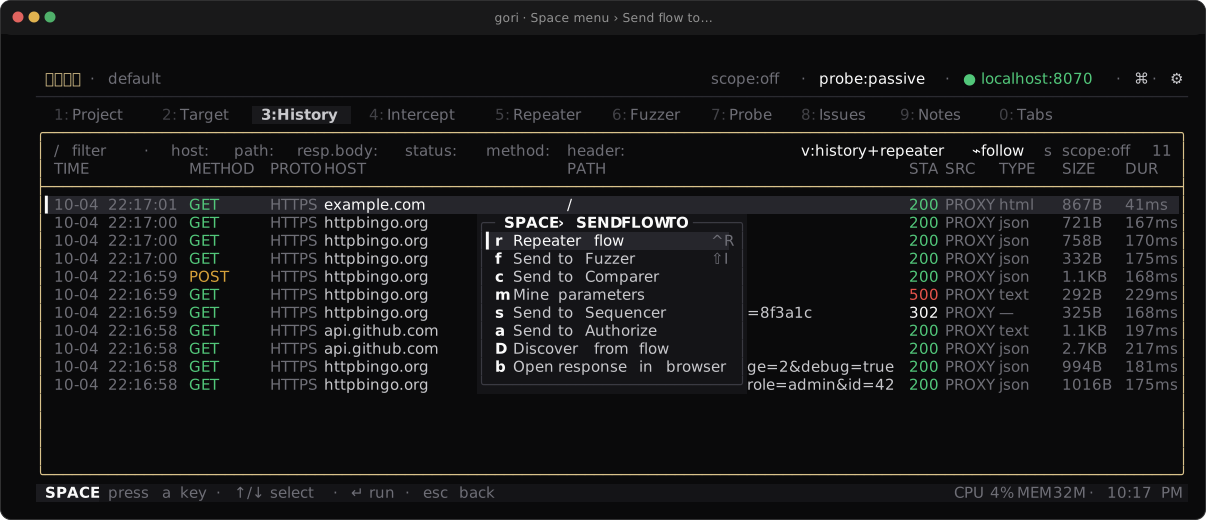
Some choices are variations of one intent: send this flow to some tool, change how this pane draws. Each of those is a single › row on the menu that opens its own card, so the first card stays short.
| Row | Holds | Found on |
|---|---|---|
> Send flow to… |
Hand the selected flow to another tool: r Repeater, f Fuzzer, c Comparer, m Miner, s Sequencer, a Authorize, D Discover, b open the response in a browser |
tabs where a flow is selected: History, the flow detail, the Sitemap, the Repeater, Fuzzer results, … |
Z Display… |
Toggles for how the pane draws: hex, pretty, diff, follow, columns, folds, … | lists and request/response panes |
P Protocol… |
What a request sends: HTTP/2, SNI, auto Content-Length, gRPC, TLS fingerprint | Repeater, Fuzzer |
T Sub-tabs… |
New, close, duplicate, rename, mark and find sub-tabs | a pane on the nine tabs with a sub-tab strip (Repeater, Fuzzer, Notes, …) |
Three things make them quick:
- Same letters on every tab. Inside a card, a tool or a toggle keeps its letter wherever the card appears:
Space>csends to the Comparer from History, the Sitemap or a Repeater tab alike. >,⇧Zand⇧Popen their card directly, withoutSpace:>fsends the selected flow to the Fuzzer.- Display… and Protocol… stay open. After you flip a toggle the card comes back at the same row, so you can flip two or three in one visit, and each row shows its state:
●on,○off, or a value such as the TLS preset's name.Esccloses it.
On a tab with a sub-tab strip, focus the strip itself (or the tab bar) and Space lists the sub-tab actions directly, with no T in front. Ctrl-N and Ctrl-W (new and close sub-tab) work from any pane.
Letters you can guess
An action that appears on many tabs has the same letter on all of them, so a letter you learn on one tab works on the next. The ones worth knowing first:
| Letter | Action |
|---|---|
/ |
filter this list |
y · Y |
copy · copy as… |
t · T |
mark · mark all |
a · e |
add (on most tabs, file an issue) · edit |
d |
delete the selected row |
r |
send to the Repeater, or run (the menu twin of Ctrl-R) |
E |
export |
L |
link to an issue or a note |
X |
wipe the tab (asks first) |
The whole table, with the reasoning behind it, is in Hotkeys → One intent, one letter.
A missed Space is unlikely to surprise you. gori checks at startup that a menu letter does not mean a different action as a bare key in the same pane, apart from a few documented cases, and it keeps c (capture) and i (intercept) off the menu on every tab that does not use those letters itself.
The command palette
Press Ctrl-P on any tab and start typing the name of what you want.
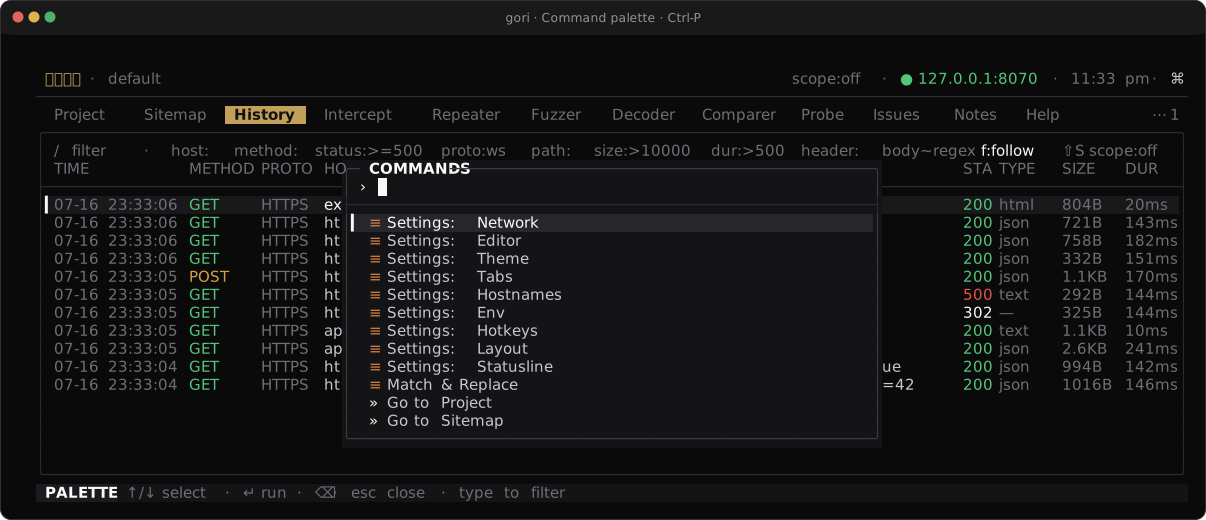
send, on History. The tab's own actions come first, each with the key or menu path that reaches it; app-wide commands follow.- With nothing typed, the palette lists the app-wide commands: settings, Open browser, Go to a tab, Guided tour, and the like.
- Once you type, it also searches the actions of the pane you opened it from. Those come first under
THIS TAB, and app-wide matches follow underAPP. - The right-hand column tells you the short route for next time.
shift-iis a key;␣ > cis a menu path:Space, then>, thenc. ↑/↓select,↵runs,Esccloses. Opened over a flow's detail, it searches the detail's actions, andEscreturns you to it.- If you have rows marked, the title reads
COMMANDS · 3 MARKED: an action you pick will apply to all of them.
Actions only the palette lists
To keep the space menu short, a few kinds of action have no row in it. Some repeat a key you already have, such as Mark word (Ctrl-K); others you need only now and then, such as Minimize request or Go to line. Type the name into Ctrl-P from the tab it belongs to and it appears under THIS TAB. Help names the route for each one: its key, or ^P → <name>.
The full list is in Hotkeys → Actions only the palette lists.
Try it: five minutes
You need a project with a few captured flows. The Quick Start gets you there.
-
Press
3for History and↓to select a flow. PressSpaceand read the card: find the›rows, and the^Rbeside Repeater flow. PressEsc.Checkpoint. You can say, without opening the menu, which key sends the selected flow to the Repeater.
-
Press
Space, then>. The card title readsSPACE › SEND FLOW TO. PressEsconce, and you are back on the first card; press it again, and the menu closes. -
Press
Space, thenZ. The Display… card shows●or○beside each toggle. Pressfto flip follow: the card stays open and the dot changes. Pressfagain to put it back, thenEsc.Checkpoint. You have used a second card, stepped back out of one, and flipped a toggle without the card closing.
-
Press
Ctrl-Pand typesend. UnderTHIS TAB, find a row whose right-hand column is a key and one whose column is a menu path. PressEsc. -
Press
Ctrl-P, typetour, and press↵to run the guided tour, orEscif you have already taken it.Checkpoint. You can find an action by name, and read off the shorter way to reach it.
When a key does nothing
Spacetyped a space. You are editing text (the pane's badge readsINS). PressEscto go back toREAD, thenSpace.- A letter from a guide does nothing. Menu letters belong to the pane you are in. Open the menu to see what this pane offers, or search the action's name with
Ctrl-P: it may be one of the palette-only actions. - You rebound a shortcut. A rebind changes the key on the right of a row, never the row's letter. The menu and the palette both show your new key.
- You picked the vim keyset. The keyset changes how you move and select in editors; it leaves every menu letter where it was. See Editor keysets.
Next Steps
- Hotkeys: rebind any shortcut, and the complete letter tables
- Quick Start: capture a request and replay it
- Proxy & History: what the History tab's actions do